Getting started with the DocuSign Integration
Connect DocuSign to LeadConnector, set up templates once, then send agreements and chase stalls in a couple of clicks — without leaving your CRM.
Last updated: June 24, 2026
LCBridge is an independent third-party integration. DocuSign and LeadConnector are trademarks of their respective owners; LCBridge is not affiliated with or endorsed by them.
Overview
The DocuSign Integration by LCBridge runs inside the LeadConnector CRM. It connects your DocuSign account to your CRM so you can send agreements for signature, track signing status, and chase stalled agreements — all without leaving LeadConnector.
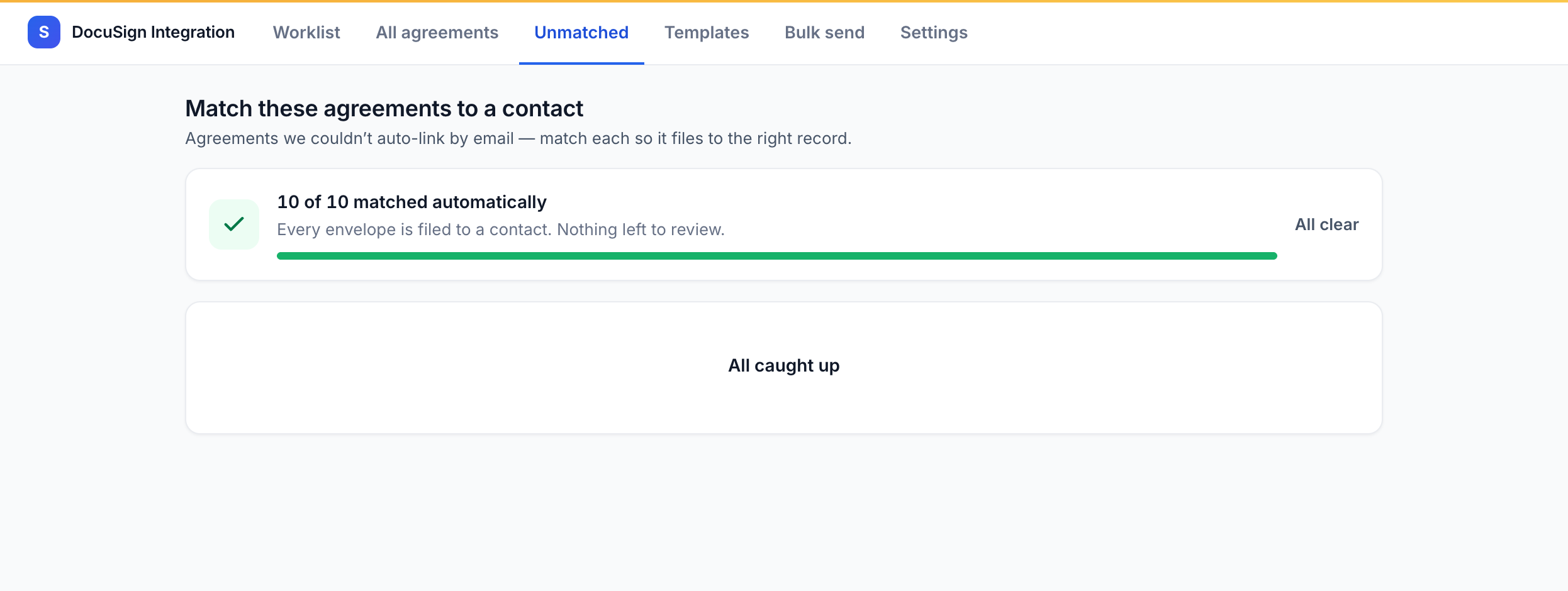
In practice, the integration does three things: it sends agreements through your connected DocuSign account, it watches DocuSign and keeps signing status current in your CRM, and it surfaces the agreements that have stalled so you can nudge the signer in one tap.
There are two audiences, and the work splits cleanly between them:
- Admins set up templates once — mapping the agreement's fields to your CRM data and saving the template as send-ready.
- Reps send those ready templates in a couple of clicks from a contact or a Smart List, then keep an eye on the Worklist.
This guide walks through the full path: connecting DocuSign, preparing a template, sending an agreement, and tracking it to completion.
Before you begin
To use the integration you need two things in place:
- A LeadConnector account with the DocuSign Integration app installed in your location (sub-account).
- A DocuSign account with API access. You connect your own DocuSign account — the integration acts on your behalf, it does not provide DocuSign for you.
Note
Entry-level and personal DocuSign plans may not include API access. To connect, your DocuSign account generally needs to be on a Business Pro tier (or a developer / API-enabled plan). If API access is not enabled, the connection will fail — see Troubleshooting.
Connect your DocuSign account
Connecting uses DocuSign's standard OAuth flow, so you never share your DocuSign password with the integration. You connect your own DocuSign account once, and it stays connected until you disconnect it.
- In LeadConnector, open the DocuSign Integration page in your location.
- Click Connect DocuSign.
- You're sent to DocuSign to sign in and authorize the integration.
- Approve the requested access — sending agreements on your behalf and reading their signing status.
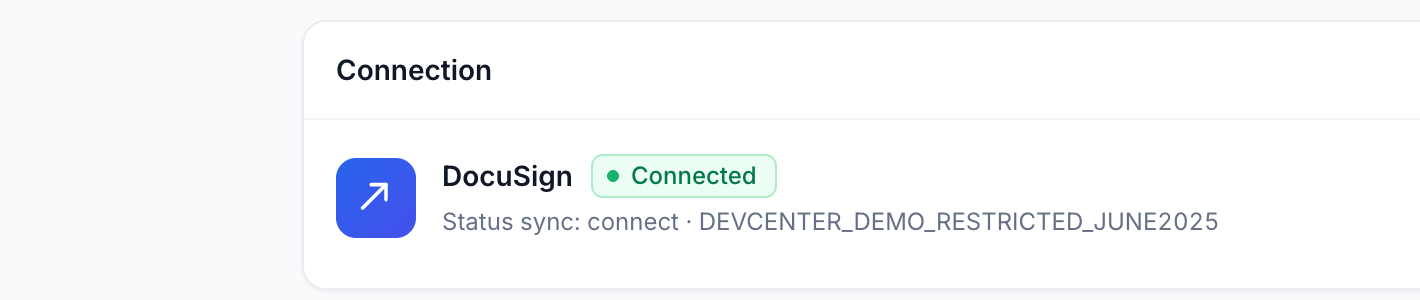
- You're returned to LeadConnector, and the integration now shows Connected.
The integration stores the connection securely. Your DocuSign OAuth tokens are encrypted at rest, and you can disconnect at any time to revoke the integration's access. For details on what is stored and how, see the Privacy Policy.
Tip
If the connection fails — for example with an invalid_client error — the most common cause is a DocuSign plan without API access. Confirm your DocuSign account has API access enabled, then try connecting again.
Set up a template (admins)
Templates are how the integration knows what to send and what to fill in. An admin sets a template up once; after that, reps can send it without touching any settings. You only need to do this when adding a new agreement or changing how an existing one is filled.
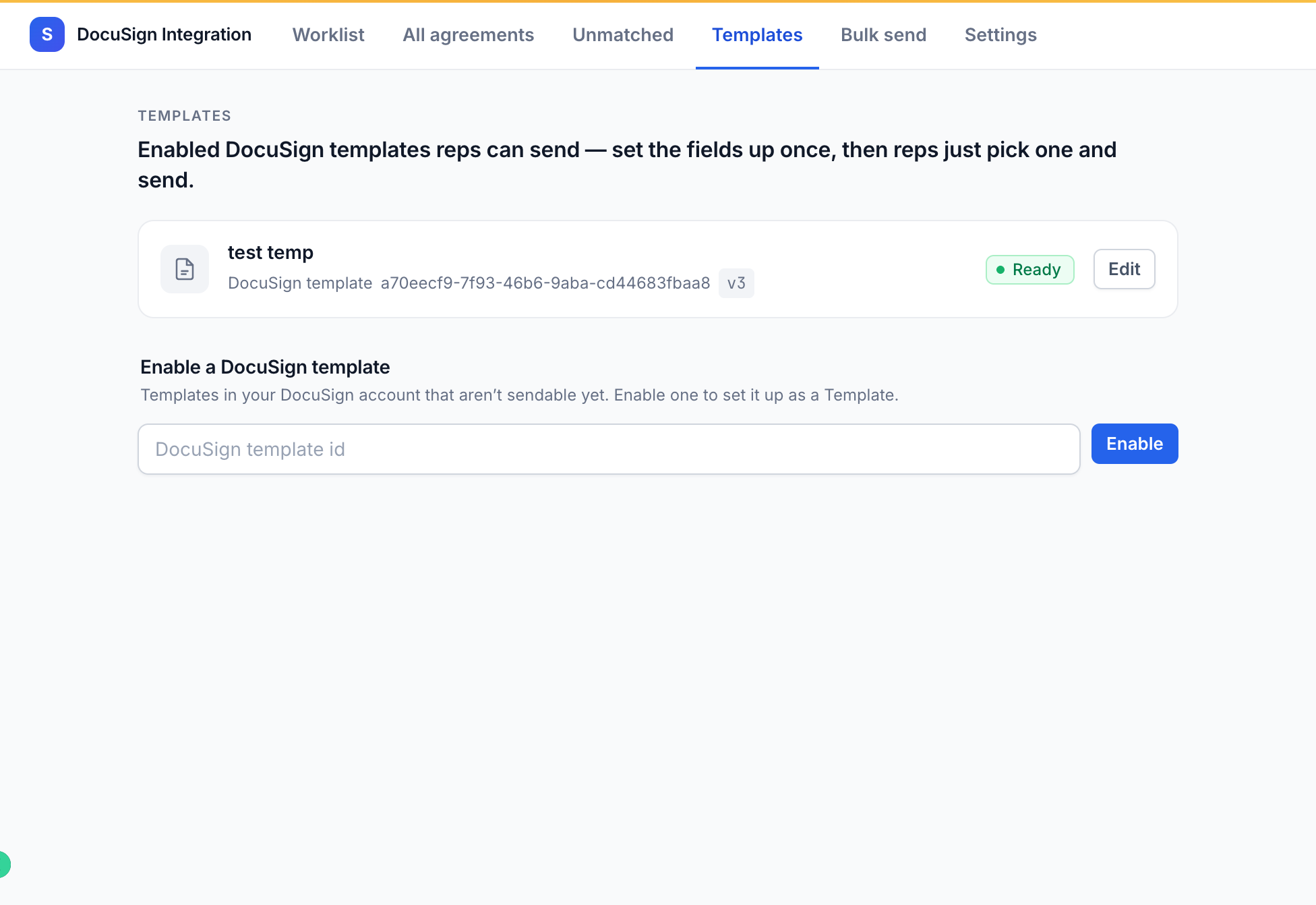
- Open Templates in the integration.
- Pick the template you want to make available.
- Map its fields to your CRM data. The integration suggests matches for you — for each suggested field, accept it with one tap, or pick a different CRM field.
- Save the template as send-ready.
Once a template is saved as send-ready, it appears for reps in the send flow. Templates that are not yet saved as send-ready stay hidden from reps, so they can't accidentally send a half-configured agreement.
Note
Map every field a recipient is expected to have filled. Required fields that aren't mapped will be caught later by the pre-flight check at send time, but mapping them now keeps the send clean.
Send an agreement
Once templates are send-ready, sending is the fast part — a rep can send in about two clicks. You can send to a single contact or to many recipients at once.
- Open a contact, or select recipients from a Smart List — one or many.
- Click Send for signature.
- Choose the template you want to send.
- Review the prefilled recipients and fields — the integration fills them from your CRM data.
- Click Send.
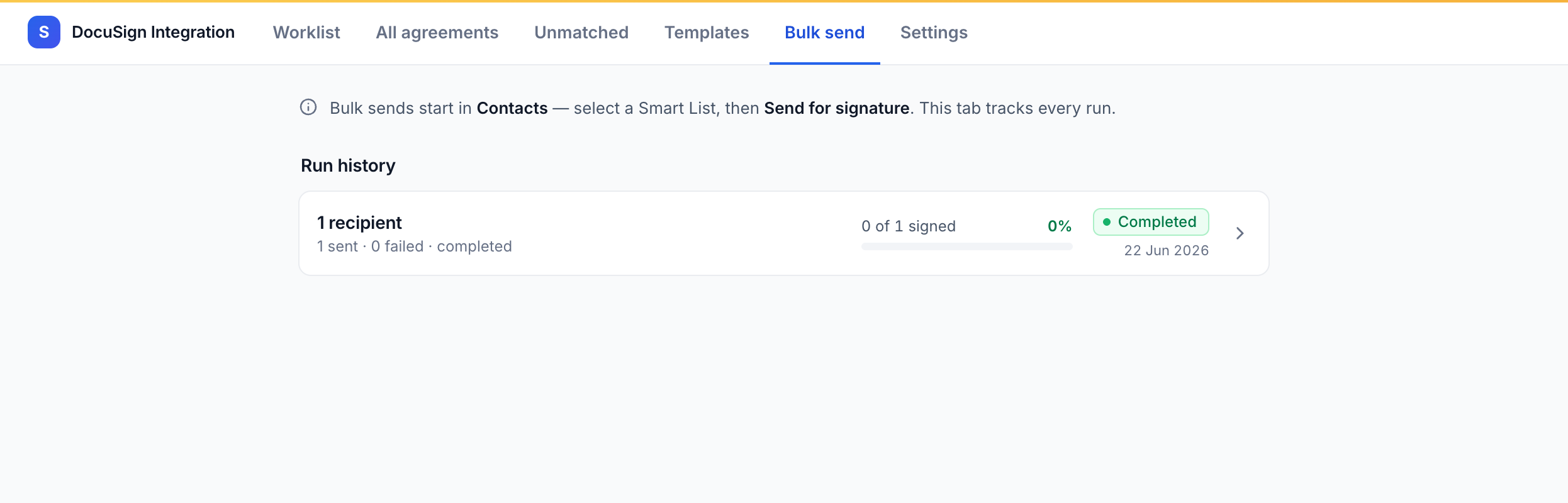
For many recipients at once, use the bulk launch from a Smart List: select the contacts, pick the template, review, and send the whole batch in one go.
Tip
Before a send goes out, a pre-flight check flags any recipient who is missing a required field, so you can fix the contact before the agreement leaves rather than after.
Track status & chase stalls
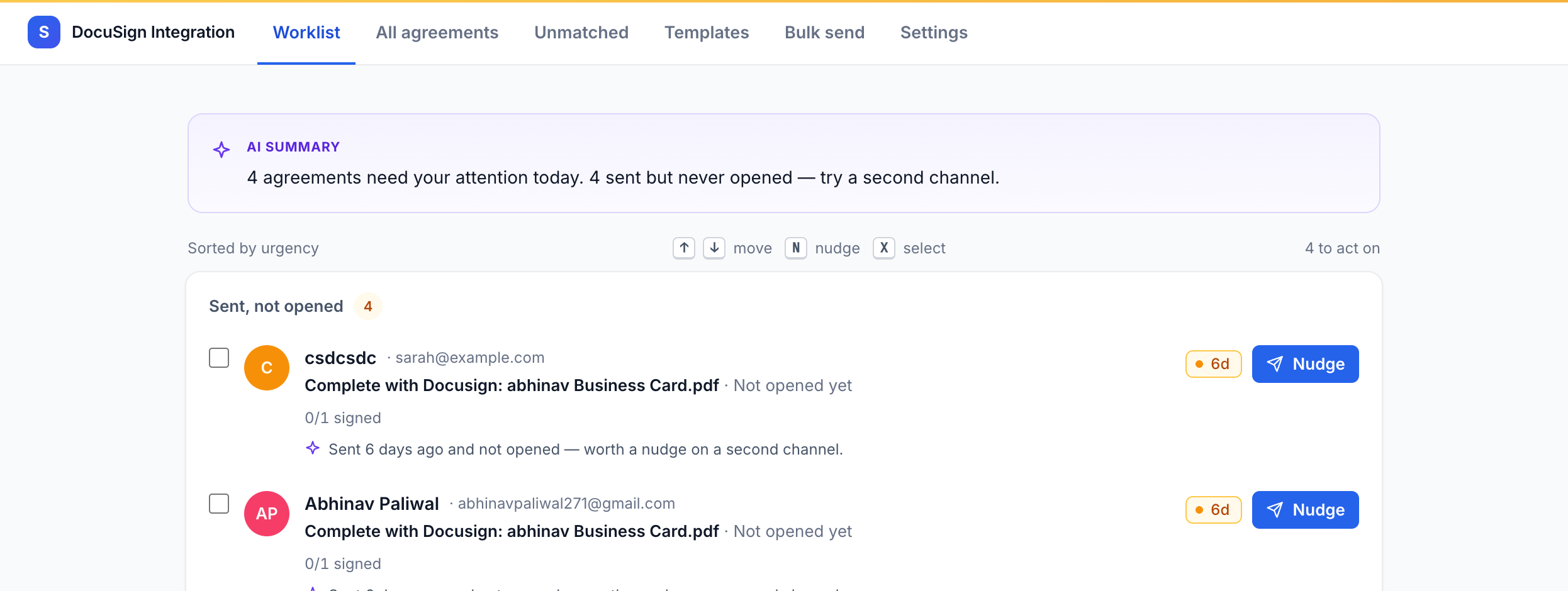
The Worklist is your home base after sending. Instead of showing every agreement equally, it surfaces the ones that need attention — agreements that have stalled, or that a recipient has viewed but not signed — so you always know who to follow up with.
- Open the Worklist to see agreements that need attention first.
- Open any recipient to see their full agreement history on the contact record.
- Nudge a stalled signer in one tap to send a reminder.
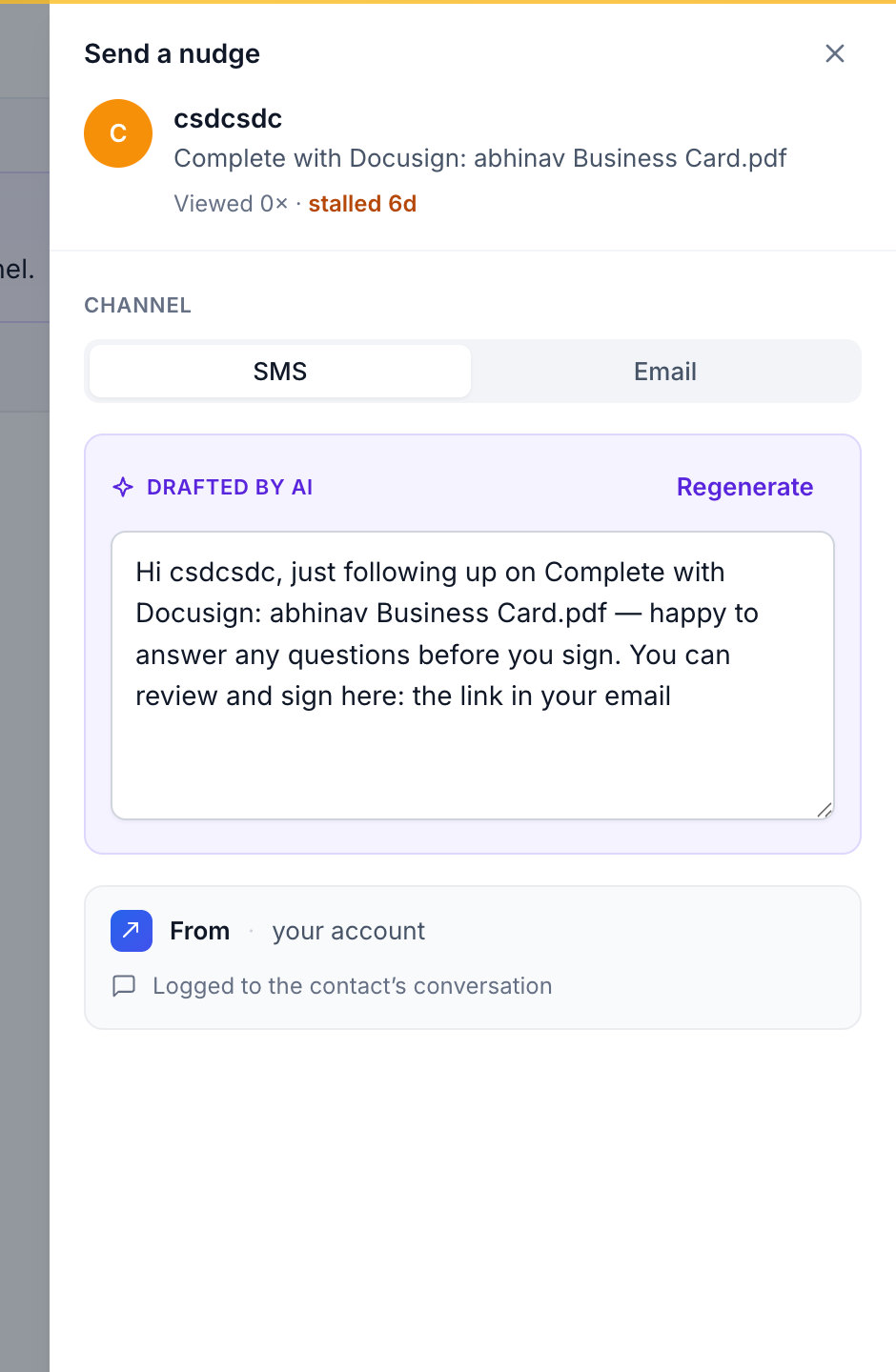
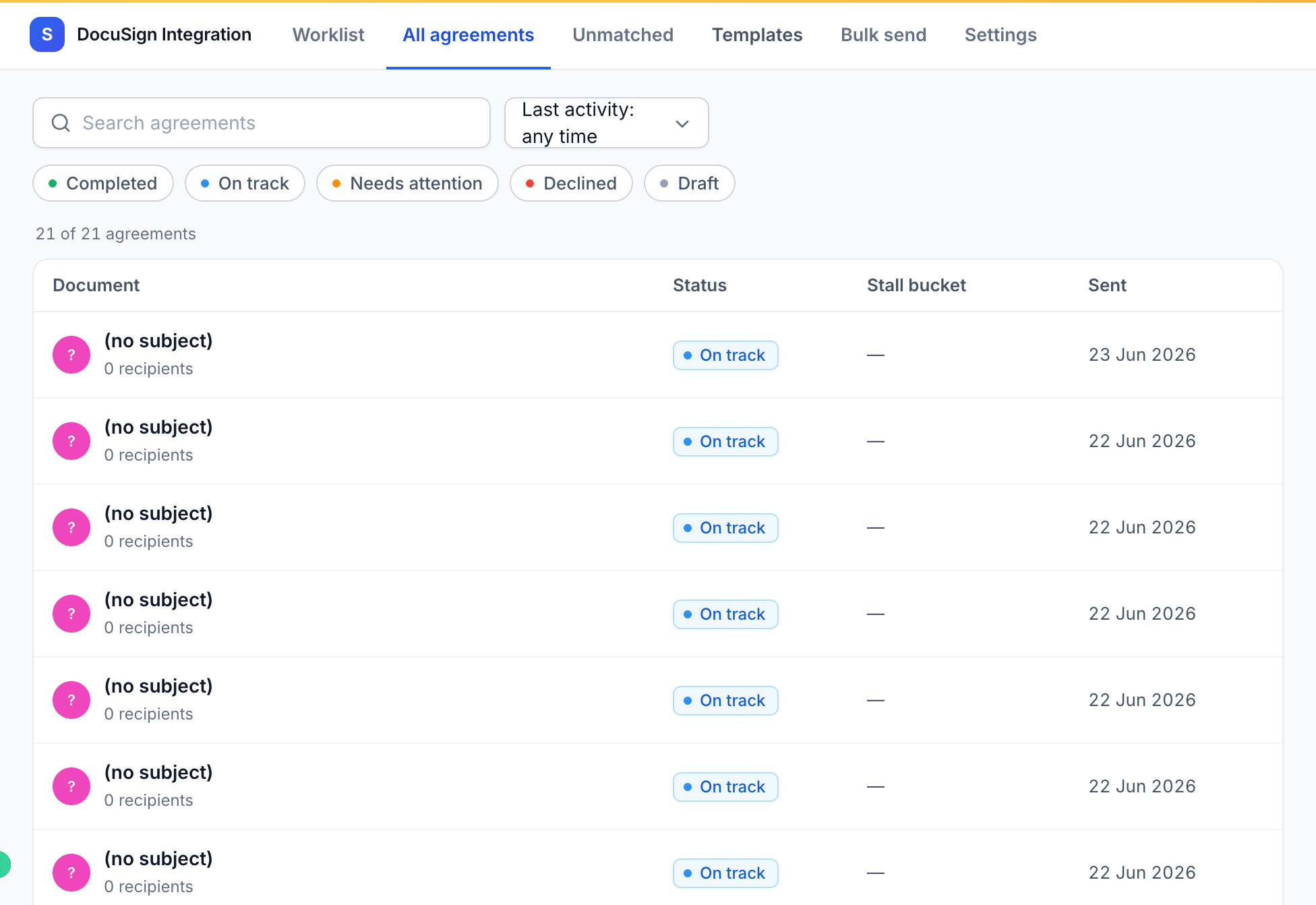
Each agreement shows one of five states, so status is readable at a glance:
- Completed
- On track
- Needs attention
- Declined
- Draft
Note
Status updates flow in automatically. Where DocuSign Connect webhooks are available, updates arrive in near real time; otherwise the integration polls DocuSign on a schedule — still automatic, just slightly slower to update.
Manage the connection & disconnect
You can check on and manage the DocuSign connection at any time from Settings.
- Check connection health — Settings shows whether DocuSign is currently connected.
- Reconnect — if the connection is lost (for example, access was revoked on the DocuSign side), click to reconnect and run through the same authorization steps as the first time.
- Disconnect — disconnecting revokes the integration's access to your DocuSign account and removes the stored connection.
When you disconnect, the integration can no longer send agreements or read status on your behalf until you reconnect. For details on how connection data is stored, retained, and deleted, see the Privacy Policy.
Troubleshooting
Most issues fall into one of a few buckets. Find the symptom and the fix below.
| Symptom | What's happening & how to fix it |
|---|---|
Connect failed / invalid_client |
Your DocuSign account most likely doesn't have API access. Confirm the account is on an API-enabled plan (e.g. Business Pro or a developer plan), then try connecting again. |
| No status updates | The account may be on polling rather than live webhooks. Status still updates automatically — it just arrives a little slower. No action needed. |
| Template not available to reps | The template hasn't been saved as send-ready. An admin should open Templates, finish the field mapping, and save it as send-ready. |
| Recipient missing a field | The pre-flight check flags any contact missing a required field before the agreement is sent. Fill in the missing field on that contact, then send again. |
Get help
If you're stuck or something isn't behaving as described here, reach out and we'll help.
- Email support: support@lcbridge.app
- Privacy Policy: how we handle your data
- Terms of Service: the terms that govern the Service
- Refund Policy: refunds & cancellations